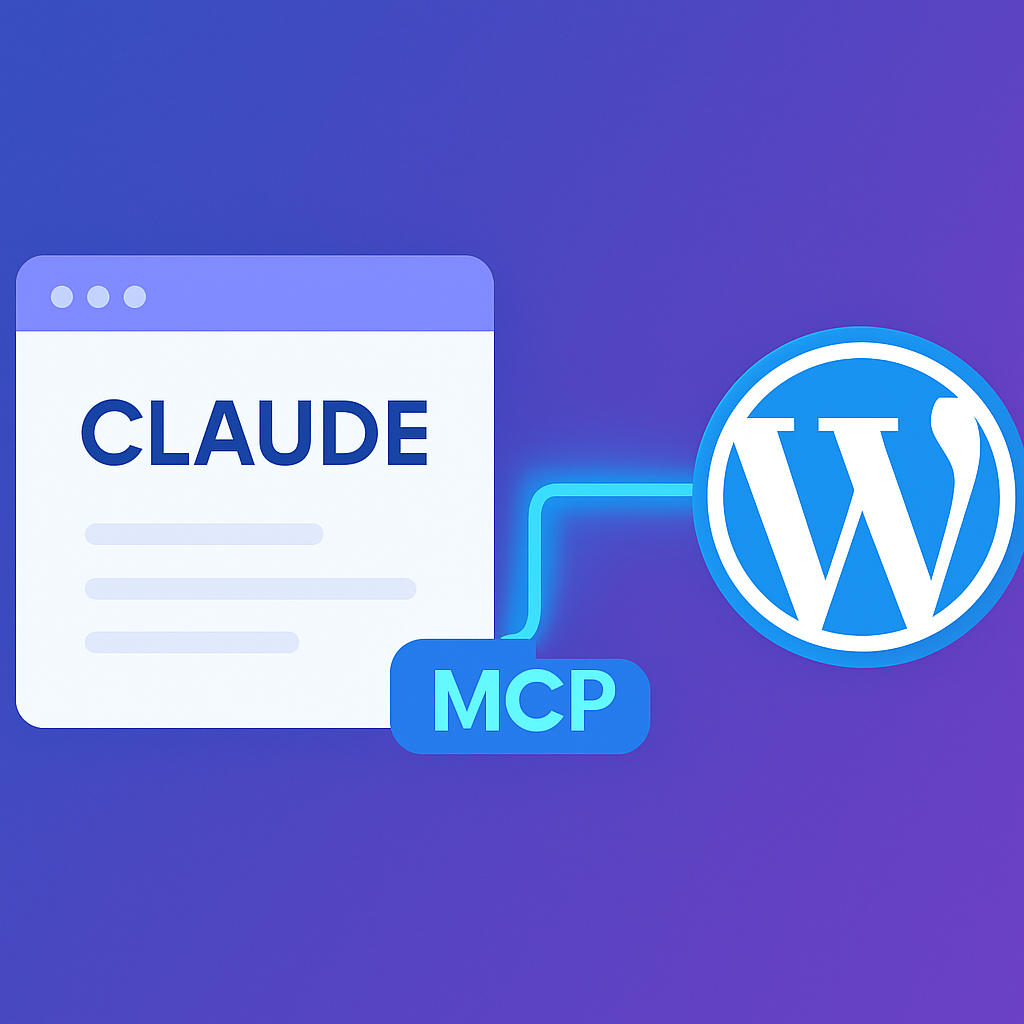
mumcp is the fastest way to connect WordPress to Claude Desktop via MCP. Install the plugin, copy your API key, add three lines to your Claude config file, and you’re managing your entire WordPress site through conversation. No coding required — the whole setup takes under 5 minutes.
What You’ll Need
- A WordPress site (5.0 or higher)
- Claude Desktop (macOS or Windows) — download here
- mumcp plugin (free) — download here
Step 1: Install mumcp
- Download mumcp from sitepilotai.mumega.com/download
- In WordPress admin, go to Plugins → Add New → Upload Plugin
- Upload the zip file and click Activate
- Go to mumcp → Settings in your admin sidebar
- Click Generate API Key and copy it — you’ll need this in the next step
Step 2: Configure Claude Desktop
Open your Claude Desktop MCP configuration file:
- macOS:
~/Library/Application Support/Claude/claude_desktop_config.json - Windows:
%APPDATA%Claudeclaude_desktop_config.json
Add the following to the mcpServers section:
{
  "mcpServers": {
    "wordpress": {
      "command": "npx",
      "args": ["-y", "@anthropic-ai/mcp-remote",
               "https://your-site.com/wp-json/site-pilot-ai/v1/mcp/sse"],
      "env": {
        "API_KEY": "spai_your_api_key_here"
      }
    }
  }
}
Replace your-site.com with your WordPress URL and spai_your_api_key_here with the API key from Step 1.
Step 3: Restart Claude Desktop
Close and reopen Claude Desktop. You should see a hammer icon in the chat input — that means MCP tools are connected. Click it to see all 207 WordPress tools available.
What You Can Do Now
With the connection active, you can manage your entire WordPress site through natural language. Here are some things to try:
Content Management
| Prompt | What Happens |
|---|---|
| “List all my published pages” | Uses wp_list_pages to show all pages with status, date, and URL |
| “Create a new blog post about SEO tips” | Uses wp_create_post with AI-generated content |
| “Update the About page title to ‘About Our Team'” | Uses wp_update_page to change the title |
| “Search for posts mentioning ‘pricing'” | Uses wp_search across all content |
Elementor Page Building
| Prompt | What Happens |
|---|---|
| “Build a landing page for my new product” | Uses wp_build_page to create a full Elementor layout |
| “Show me the Elementor structure of the homepage” | Uses wp_get_elementor to retrieve layout data |
| “Add a testimonials section to page 95” | Uses wp_add_section to insert a new Elementor section |
| “Change the hero heading to ‘Welcome Home'” | Uses wp_patch_elementor for targeted edits |
SEO, WooCommerce & More
| Prompt | What Happens |
|---|---|
| “Audit SEO on all my blog posts” | Uses wp_analyze_seo to check meta titles, descriptions, keywords |
| “List WooCommerce products under $50” | Uses wp_woo_list_products with price filtering |
| “Generate a featured image for post 42” | Uses wp_generate_featured_image with DALL-E |
| “Read Contact Form 7 submissions” | Uses wp_get_form_entries to retrieve form data |
All 207 MCP Tools Available
mumcp gives Claude access to 207 tools across 15 categories:
- Content Management — posts, pages, drafts, media, search, bulk operations
- Elementor — get/set layouts, build pages, section CRUD, widget schemas
- Theme Builder — templates, conditions, headers/footers
- WooCommerce — products, orders, customers, coupons, revenue reports
- SEO — Yoast, RankMath, AIOSEO support with bulk audit
- Forms — CF7, WPForms, Gravity Forms, Ninja Forms
- LearnPress LMS — courses, lessons, quizzes, students
- Navigation & Menus — create, reorder, assign locations
- Widgets & Sidebars — add, update, move, reorder
- Gutenberg Blocks — read and write block content
- Webhooks — create, test, and monitor webhooks
- Multilingual — WPML and Polylang support
- AI Media — image generation, alt text, text-to-speech, stock photos
- API Keys & Security — key management, rate limiting
- Site & Settings — options, health, capabilities, analytics
See the complete tool reference for detailed documentation on every tool.
Troubleshooting
No hammer icon in Claude Desktop?
- Make sure you restarted Claude Desktop completely (quit and reopen)
- Check that
claude_desktop_config.jsonis valid JSON (no trailing commas) - Verify your WordPress site is accessible from the internet (localhost won’t work with Claude Desktop)
“Authentication failed” errors?
- Verify your API key starts with
spai_ - Check that the API key in Claude config matches exactly what’s shown in WordPress admin
- Make sure mumcp plugin is activated
Tools show but calls fail?
- Check your WordPress site’s PHP error log
- Ensure your hosting allows REST API access (some hosts block it)
- Try the connection test: visit
https://your-site.com/wp-json/site-pilot-ai/v1/site-infoin your browser
Also Works With
mumcp isn’t limited to Claude Desktop. The same MCP endpoint works with:
- Claude Code — terminal-based AI coding assistant
- ChatGPT — via MCP bridge or API
- Google Gemini — via MCP client
- Cursor — AI code editor with built-in MCP support
- Windsurf — AI coding IDE
- Any MCP-compatible client — the protocol is an open standard
See our guides for ChatGPT, Gemini, and all 207 tools.
Get Started
mumcp is free — all 207 tools, no paywalls, no feature gates. Download the plugin and connect your WordPress site to Claude Desktop in under 5 minutes.