What Is the Model Context Protocol?
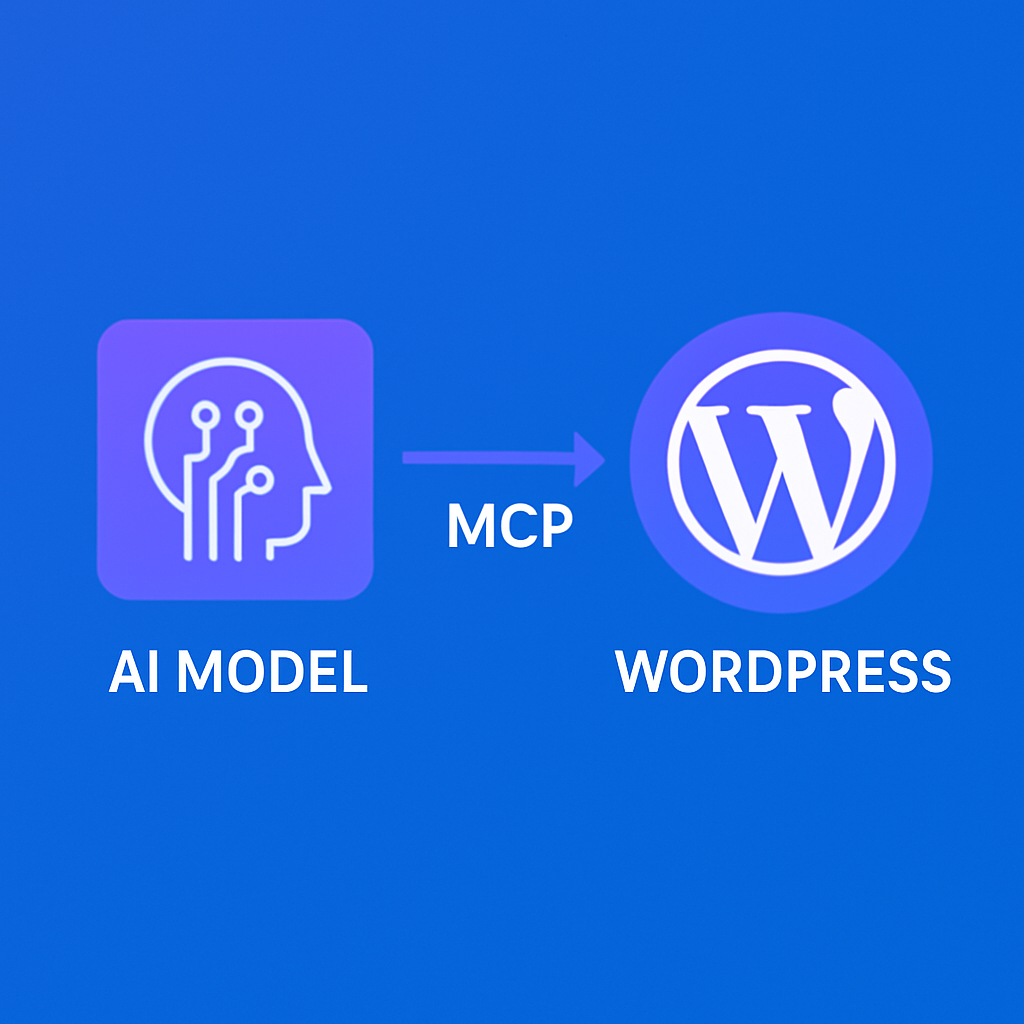
The Model Context Protocol (MCP) is an open standard for connecting AI models to external tools and data sources. Developed by Anthropic, MCP provides a structured way for AI assistants like Claude to discover, understand, and use tools that interact with real-world systems.
Think of MCP as a universal adapter between AI and software. Instead of building custom integrations for every AI platform, you implement MCP once and any MCP-compatible client can use your tools. It’s like how USB standardized device connections — MCP standardizes AI-to-tool connections.
How MCP Works
MCP follows a client-server architecture:
- MCP Server — Your application (like a WordPress plugin) that exposes tools. The server defines what tools are available, what parameters they accept, and what they return.
- MCP Client — The AI assistant (Claude Desktop, ChatGPT via adapter, etc.) that discovers and uses the tools. The client reads the server’s tool definitions and decides when and how to use them.
- Transport — The communication layer between client and server. MCP supports stdio (local processes) and HTTP (remote servers).
When a client connects to a server, it calls tools/list to discover available tools. Each tool has a name, description, and parameter schema. The client (AI assistant) reads these definitions and uses the tools when appropriate during conversations.
WordPress + MCP = mumcp
mumcp is an MCP server implemented as a WordPress plugin. It exposes 139+ tools that let AI assistants interact with your WordPress site. The tools cover:
- Content (28 tools) — Posts, pages, drafts, cloning, translations, search
- Elementor (29 tools) — Page builder, templates, Theme Builder, globals, widgets
- Site (42 tools) — Menus, widgets, sidebars, options, CSS, analytics, plugins
- SEO (6 tools) — Yoast, Rank Math, AIOSEO metadata management
- Media (6 tools) — Upload, list, delete, screenshot
- Taxonomy (5 tools) — Categories, tags, custom taxonomies
- Forms (4 tools) — CF7, WPForms, Gravity Forms integration
- Gutenberg (4 tools) — Block editor content and patterns
- Webhooks (7 tools) — Event subscriptions and delivery management
- Admin (8 tools) — API keys, rate limits, feedback
Setting Up MCP with WordPress
Step 1: Install mumcp
Download the plugin from the Get Started page or install it directly from within WordPress. Activate the plugin and navigate to the mumcp settings page.
Step 2: Generate an API Key
In the plugin settings, generate a new API key. This key authenticates all MCP requests. Store it securely — you’ll need it for the client configuration.
Step 3: Configure Your MCP Client
The configuration depends on your client:
Claude Desktop (Custom Connector)
In Claude Desktop settings, add a Custom Connector. Set the name to your site identifier and the URL to: https://yoursite.com/wp-json/site-pilot-ai/v1/mcp?api_key=YOUR_KEY
Claude Code (CLI)
Add to your claude_desktop_config.json:
{
  "mcpServers": {
    "my-wordpress-site": {
      "command": "npx",
      "args": ["-y", "site-pilot-ai-mcp",
        "--url", "https://yoursite.com",
        "--api-key", "YOUR_KEY"]
    }
  }
}
Other MCP Clients
Any MCP client that supports HTTP transport can connect to mumcp’s MCP endpoint: POST /wp-json/site-pilot-ai/v1/mcp with JSON-RPC 2.0 messages.
Step 4: Verify the Connection
Ask your AI assistant: “What WordPress tools are available?” It should list the MCP tools from your site. Try a simple operation: “Get the site info for my WordPress site.” If you get back your site name, URL, and version, the connection is working.
MCP Tool Lifecycle
When your AI assistant uses an MCP tool, here’s what happens:
- Discovery — The AI reads tool definitions from your site’s
tools/listresponse - Selection — Based on your request, the AI selects the appropriate tool(s)
- Invocation — The AI sends a
tools/callrequest with the tool name and parameters - Execution — mumcp validates the parameters, executes the WordPress operation, and returns the result
- Response — The AI reads the result and presents it to you in natural language
The entire cycle typically takes 1-3 seconds per tool call, including network latency.
Advanced MCP Patterns
Tool Chaining
AI assistants can chain multiple tools together to accomplish complex tasks. “Create a page, add Elementor content, set SEO metadata, and publish” involves 3-4 tool calls in sequence. The AI manages the dependencies automatically — it uses the page ID from the create call in subsequent calls.
Batch Operations
The wp_batch_update tool lets you bundle up to 25 operations in a single request, reducing round trips and improving performance for bulk tasks.
Context-Aware Operations
AI assistants can read your site’s current state before making changes. “Update the homepage hero text” first calls wp_get_elementor to read the current data, then wp_edit_section to make targeted changes without overwriting the entire page.
Security Considerations
MCP connections are secured through:
- API key authentication — Every request must include a valid API key
- Rate limiting — Configurable limits prevent abuse (default: 10 requests per 10 seconds)
- HTTPS enforcement — API keys are transmitted over encrypted connections
- Scoped keys — You can create read-only keys or restrict keys to specific tool categories
- Activity logging — All operations are logged for audit purposes
What’s Next for MCP + WordPress
The MCP ecosystem is growing rapidly. As more AI clients adopt the standard and more WordPress plugins expose MCP interfaces, the integration possibilities multiply. mumcp is actively developing new tool categories including WooCommerce management, advanced analytics, and cross-site orchestration.
Start with the Getting Started guide, and explore the full tool reference to see everything you can do.